What a clock-in link is
A clock-in link is personal: it signs that person in on their phone and opens the clock-in screen. There is nothing to install and no password to remember. The worker can add it to the home screen so it opens like an app.
Send one link
- Open People and choose the person.
- In Clock-in link, press Create link.
- Send it with WhatsApp or SMS, copy it, or show the QR code for the person to scan.
If no mobile number is saved, WhatsApp asks you who to send it to.
Send everyone's links at once
On People, press Share all links. Select the people, create the links, then:
- Send one by one: opens a WhatsApp message for each person in turn.
- Download CSV or Copy all: for your own messaging tool.
- Print QR sheet: one QR code per person, to hand out on paper.
Replace a link
Press New link on the person's page. The old link stops working at once. Do this when a phone is lost or a link was shared by mistake.
What the worker sees
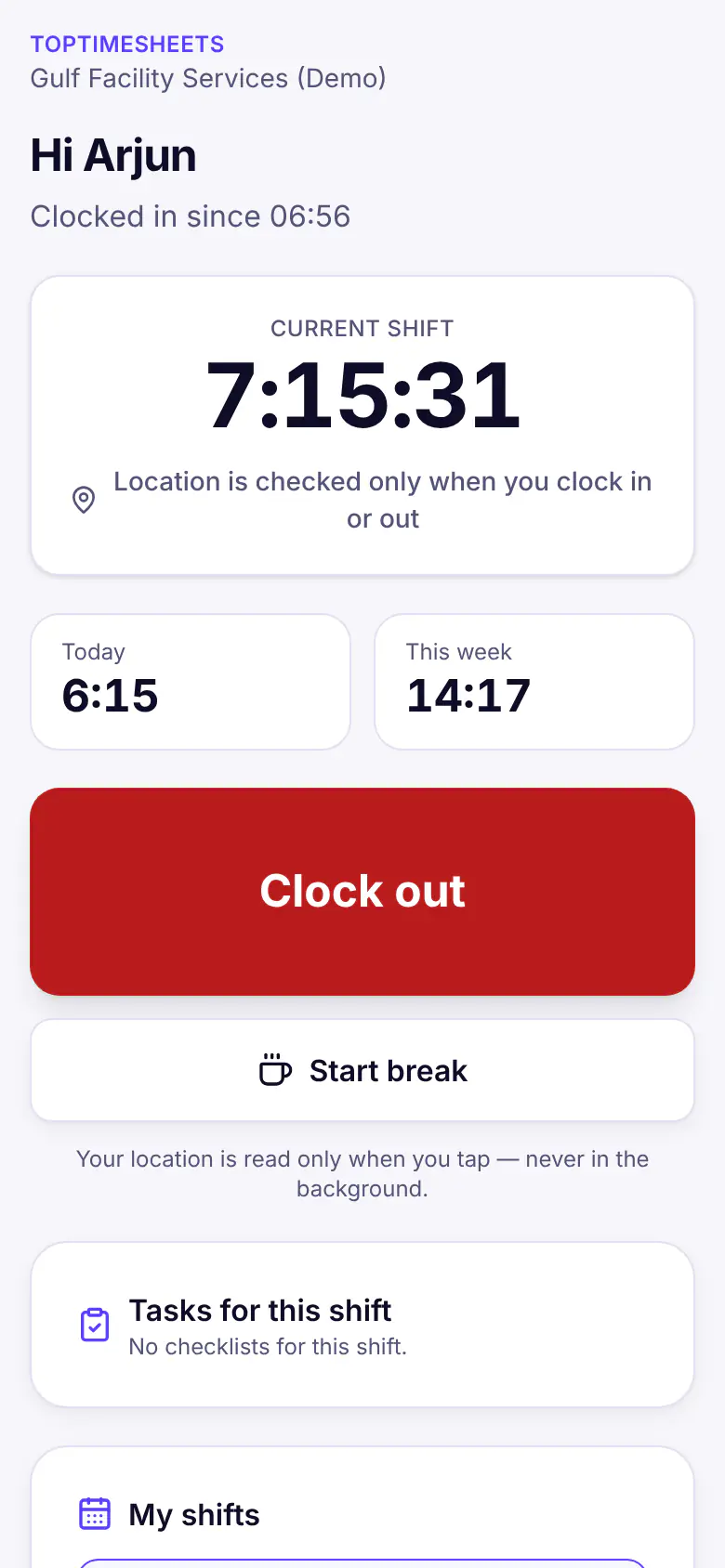
- Before the first clock-in, a short notice explains what is recorded: the time, the location at the moment they tap, and a selfie if you ask for one. See Location checks and selfies.
- Big Clock in, Start break, End break and Clock out buttons, with today's and this week's hours.
- Fix a missed punch: the worker tells you the right time; you approve it on Timesheets.
- Their shifts, leave requests and balances, open shifts and messages from you.
- My data: what is kept about them, a download of their data and a way to ask for a correction.
The screen keeps working without a connection: punches are saved on the phone with the real time and sent when the phone is back online. See Troubleshooting.
Clock-in by WhatsApp message is coming soon. Today, WhatsApp is used to send the clock-in links.
Other ways to clock in
- A shared tablet at the entrance: see Kiosk and crew clock-in.
- A QR code at the site: see Site QR codes and tags.
Vérifié avec le produit le 17 novembre 2026