The week at a glance
Timesheets shows one row per person and one column per day, with the total and the overtime split from your overtime rules. Use the arrows to move between weeks.
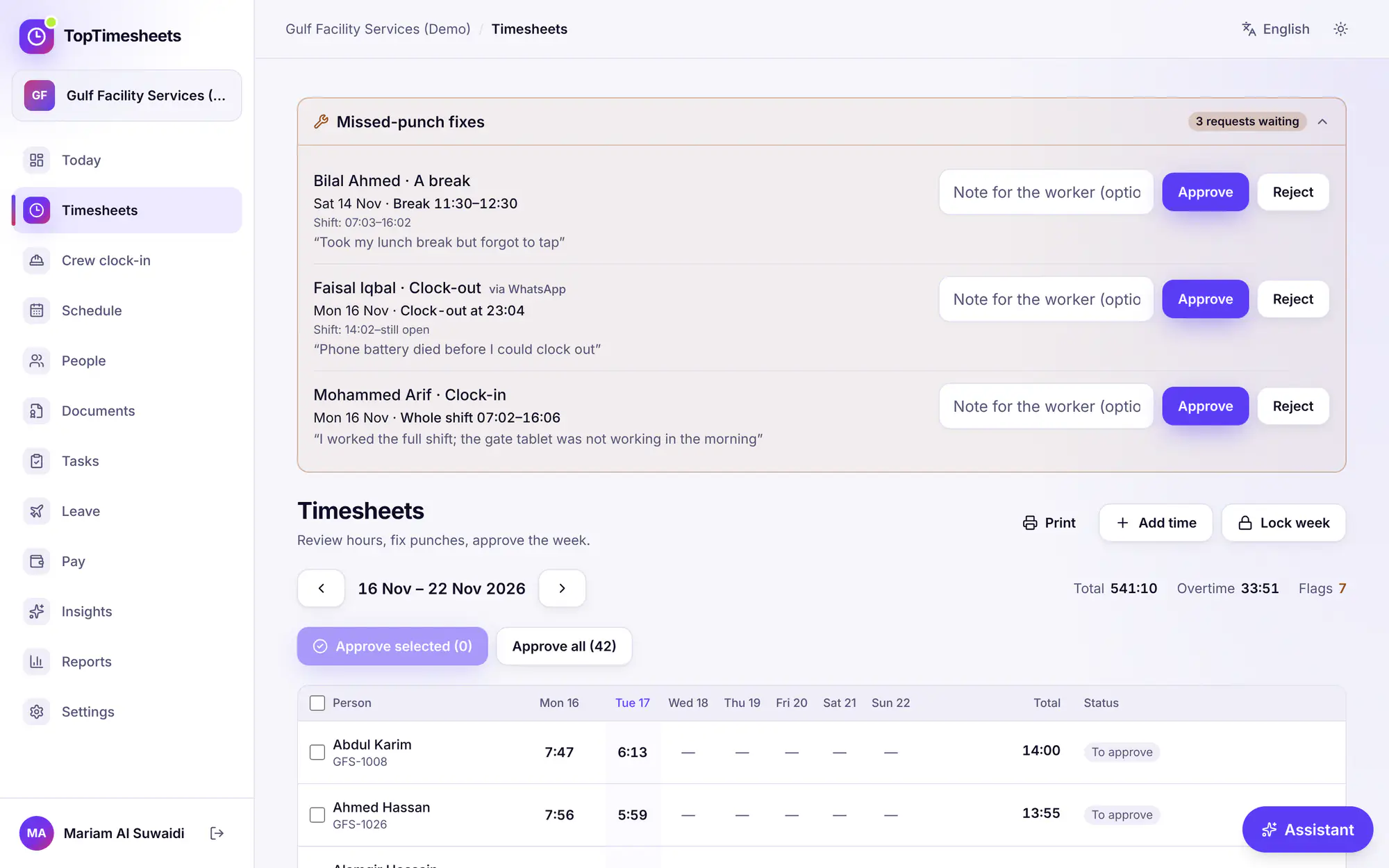
Flags point at what needs a look, for example Still clocked in, Missed punch, Outside site, No selfie, Offline punch, Late or Over daily max. Open a day to see each punch with its time, source (phone, kiosk, crew, manager), GPS accuracy and selfie.
Fix hours
- Add time: add a shift by hand, with start, end and breaks. Leave the end empty while the person is still working.
- Edit or Delete a shift: a reason is required. The worker can see it, and it is kept in the audit log.
Approve
Tick people and press Approve selected, or Approve all. Approved days can no longer be changed until you press Unapprove. Pay runs use approved hours. See Pay runs and payslips.
Lock a pay period
On the টিম plan and above, Lock week closes a period once payroll is final: hours in it can no longer be added, changed or deleted. Approving a pay run also locks its month.
Missed-punch fixes from workers
When a worker forgot to clock in or out, or to punch a break, they press Fix a missed punch on their clock-in screen, choose what was missed and which shift, and give the right time and a reason.
The requests appear in Missed-punch fixes at the top of Timesheets:
- Check the proposed time against the shift.
- Press Approve to apply it, or Reject. You can add a note for the worker.
- The worker sees the result under My requests.
If the day is already approved or locked, unapprove it first, or reject the request.
Tips
- Clear Still clocked in flags before you approve: an open shift has no end time yet.
- Workers' phones keep punches made offline and send them later with the real time. See Troubleshooting.
17 নভেম্বর, 2026 তারিখে প্রোডাক্টের সাথে মিলিয়ে দেখা হয়েছে